基于 RTSP 协议与 WebRTC-Streamer 实现海康摄像头视频流的网页实时播放
一、前言
最近在做一个安防监控项目时,遇到了一个常见的技术难题:如何在网页上实时播放海康摄像头的视频流?大家都知道,海康等主流摄像头通常使用 RTSP 协议输出视频,但浏览器并不支持直接播放 RTSP 流,这给 Web 端集成带来了很大挑战。
经过多次尝试和踩坑,我发现 WebRTC-Streamer 是一个非常轻量级且高效的解决方案。它能将 RTSP 流实时转换为浏览器支持的 WebRTC 流,实现毫秒级延迟的视频播放。今天就把整个实现过程和经验分享给大家,希望能帮助到有类似需求的开发者。
二、核心原理解析
1. RTSP 协议简介
先简单说一下 RTSP 协议。RTSP(Real Time Streaming Protocol)是专门为实时流媒体设计的控制协议,海康、大华等主流安防设备都默认支持。我们平时访问摄像头时,常用的 RTSP URL 格式是这样的:
1
| rtsp://用户名:密码@摄像头IP:554/Streaming/Channels/101
|
这里有个小细节需要注意:URL 中的数字组合很关键,101 代表主码流(高清),而 102 则代表子码流(标清)。在实际应用中,如果网络带宽有限,可以考虑使用子码流来保证流畅度。
RTSP 最大的优势是延迟低,但它的缺点也很明显——浏览器并不支持直接播放,这也是我们需要 WebRTC-Streamer 的原因。
2. WebRTC 协议简介
WebRTC(Web Real-Time Communication)相信大家都不陌生,它是浏览器原生支持的实时通信技术。在实际使用中,我发现 WebRTC 有几个非常突出的优势:
- 完全不需要安装任何插件,所有现代浏览器都原生支持
- 延迟极低,实际测试中通常能控制在 500ms 以内
- 内置了 NAT 穿透功能,这对于复杂网络环境下的部署非常友好
- 支持端到端加密,安全性有保障
正是这些特性,让 WebRTC 成为了浏览器实时视频播放的理想选择。
3. WebRTC-Streamer 作用
WebRTC-Streamer 是整个解决方案的核心,它就像一个「翻译官」,在 RTSP 和 WebRTC 之间架起了一座桥梁。我在项目中使用后发现,它的设计非常巧妙:
- 首先,它能接收来自摄像头的 RTSP 流(实际上它还支持 RTMP、HTTP 等多种协议)
- 然后,它会智能地进行转封装处理,尽可能避免全量转码(这对性能影响很大)
- 最后,它通过 WebRTC 协议将视频流输出给浏览器
- 同时,它还内置了 WebSocket 信令服务,让前端可以方便地控制视频流
这样一来,就形成了一条完整的传输链路:摄像头 → WebRTC-Streamer → 浏览器,实现了从专业安防设备到 Web 前端的无缝衔接。
三、部署环境准备
1. 前置条件
在开始之前,我们需要准备以下环境:
- 一台支持 RTSP 协议的海康摄像头(确保 RTSP 功能已开启)
- 一台服务器或本地电脑(用于部署 WebRTC-Streamer)
- Docker 环境(强烈推荐,能极大简化部署流程)
2. 获取摄像头 RTSP 地址
这一步很关键,很多朋友在这里遇到问题。首先,登录海康摄像头的管理后台,进入「网络设置 → 高级设置 → 端口」,确认 RTSP 端口是否为默认的 554(大多数情况下都是)。
然后,根据摄像头的用户名、密码和 IP 地址,按照格式拼接 RTSP URL:
1
| rtsp://admin:12345@192.168.1.64:554/Streaming/Channels/101
|
这里要注意,不同型号的海康摄像头可能 URL 格式略有不同。如果遇到连接问题,可以查阅对应型号的官方文档。
四、使用 WebRTC-Streamer 转推 RTSP 流
1. 拉取镜像并运行
使用 Docker 部署是最简便的方式,一行命令就能搞定:
1
2
3
4
5
| docker run -d \
--name webrtc-streamer \
-p 8000:8000 \
-e RTSP_URL="rtsp://admin:12345@192.168.1.64:554/Streaming/Channels/101" \
mpromonet/webrtc-streamer
|
这里用的是官方维护的 mpromonet/webrtc-streamer 镜像,支持多种操作系统和硬件平台,稳定性和兼容性都很不错。启动后,服务会默认监听 8000 端口。
2. 验证服务
部署完成后,我们需要验证服务是否正常运行。打开浏览器,访问:
如果一切顺利,你会看到 WebRTC-Streamer 的默认播放页面。在页面的输入框中,你可以手动输入 RTSP 地址,或者如果之前在启动容器时已经通过环境变量指定了 RTSP URL,系统可能会自动识别并显示对应的流。点击播放按钮,就能看到摄像头的实时画面了。
五、前端网页嵌入 WebRTC 播放
在实际项目中,我们通常需要将视频播放功能集成到自己的系统中。WebRTC-Streamer 提供了简洁的 HTTP API,可以很方便地嵌入到我们的前端页面。
下面是一个我在项目中使用过的集成示例,已经过优化并添加了完善的错误处理和用户体验设计:
1
2
3
4
5
6
7
8
9
10
11
12
13
14
15
16
17
18
19
20
21
22
23
24
25
26
27
28
29
30
31
32
33
34
35
36
37
38
39
40
41
42
43
44
45
46
47
48
49
50
51
52
53
54
55
56
57
58
59
60
61
62
63
64
65
66
67
68
69
70
71
72
73
74
75
76
77
78
79
80
81
82
83
84
85
86
87
88
89
90
91
92
93
94
95
96
97
98
99
100
101
102
103
104
105
106
107
108
109
110
111
112
113
114
115
116
117
118
119
120
121
122
123
124
125
126
127
128
129
130
131
132
133
134
135
136
137
138
139
140
141
142
143
144
145
146
147
148
149
150
151
152
153
154
155
156
157
158
159
160
161
162
163
164
165
166
167
168
169
170
171
172
173
174
175
176
177
178
179
180
181
182
183
184
185
186
187
188
189
190
191
192
193
194
195
196
197
198
199
200
201
202
203
204
205
206
207
208
209
210
211
212
213
214
215
216
217
218
219
220
221
222
223
224
225
226
227
228
229
230
231
232
233
234
235
236
237
238
239
240
241
242
243
244
245
246
247
248
249
250
251
252
253
254
255
256
257
258
259
260
261
262
263
264
265
266
267
268
269
270
271
272
273
274
275
276
277
278
279
280
281
282
283
284
285
286
287
288
289
290
291
292
293
294
295
296
297
298
299
300
301
302
303
304
305
306
307
308
309
310
311
312
313
314
315
316
317
318
319
320
321
322
323
324
325
326
327
328
329
330
331
332
333
334
335
336
337
338
339
340
341
342
343
344
345
346
347
348
349
350
351
352
353
354
355
356
357
358
359
360
361
362
363
364
365
366
367
368
369
370
371
372
373
374
375
376
377
378
379
380
381
382
383
384
385
386
387
388
389
390
391
392
393
394
395
396
397
398
399
400
401
402
403
404
405
406
407
408
409
410
411
412
413
414
415
416
417
418
419
420
421
422
423
424
425
426
427
428
429
430
431
432
433
434
435
| <!DOCTYPE html>
<html lang="zh-CN">
<head>
<meta charset="UTF-8">
<meta name="viewport" content="width=device-width, initial-scale=1.0">
<title>海康视频实时预览</title>
<script src="./webrtcstreamer.js"></script>
<style>
* {
margin: 0;
padding: 0;
box-sizing: border-box;
}
body {
font-family: 'Microsoft YaHei', Arial, sans-serif;
background-color: #f5f5f5;
color: #333;
line-height: 1.6;
padding: 20px;
min-height: 100vh;
display: flex;
flex-direction: column;
align-items: center;
}
.container {
width: 100%;
max-width: 800px;
background: white;
border-radius: 12px;
box-shadow: 0 4px 20px rgba(0, 0, 0, 0.1);
overflow: hidden;
}
.header {
background: linear-gradient(135deg, #1e88e5, #2196f3);
color: white;
padding: 20px;
text-align: center;
}
.header h1 {
font-size: 1.8rem;
font-weight: 500;
margin: 0;
}
.video-container {
position: relative;
width: 100%;
padding-top: 56.25%;
background: #000;
overflow: hidden;
}
#video {
position: absolute;
top: 0;
left: 0;
width: 100%;
height: 100%;
object-fit: contain;
}
.status-overlay {
position: absolute;
top: 10px;
right: 10px;
padding: 8px 12px;
border-radius: 4px;
font-size: 0.9rem;
font-weight: 500;
background: rgba(0, 0, 0, 0.7);
color: white;
z-index: 10;
display: flex;
align-items: center;
gap: 8px;
}
.status-indicator {
width: 8px;
height: 8px;
border-radius: 50%;
animation: pulse 2s infinite;
}
.status-indicator.connected {
background: #4caf50;
}
.status-indicator.disconnected {
background: #f44336;
}
.status-indicator.connecting {
background: #ff9800;
}
@keyframes pulse {
0% {
opacity: 1;
}
50% {
opacity: 0.6;
}
100% {
opacity: 1;
}
}
.controls {
padding: 20px;
display: flex;
flex-wrap: wrap;
gap: 12px;
justify-content: center;
background: #fafafa;
border-top: 1px solid #eee;
}
button {
padding: 10px 20px;
border: none;
border-radius: 6px;
font-size: 0.95rem;
font-weight: 500;
cursor: pointer;
transition: all 0.3s ease;
display: flex;
align-items: center;
gap: 8px;
}
.btn-primary {
background: #2196f3;
color: white;
}
.btn-primary:hover:not(:disabled) {
background: #1976d2;
transform: translateY(-1px);
box-shadow: 0 4px 8px rgba(33, 150, 243, 0.3);
}
.btn-danger {
background: #f44336;
color: white;
}
.btn-danger:hover:not(:disabled) {
background: #d32f2f;
transform: translateY(-1px);
box-shadow: 0 4px 8px rgba(244, 67, 54, 0.3);
}
button:disabled {
opacity: 0.6;
cursor: not-allowed;
transform: none;
}
.info {
padding: 20px;
font-size: 0.9rem;
color: #666;
background: #f9f9f9;
border-top: 1px solid #eee;
}
.info h3 {
color: #333;
margin-bottom: 10px;
font-size: 1.1rem;
}
.info p {
margin-bottom: 8px;
word-break: break-all;
}
.loading-overlay {
position: absolute;
top: 0;
left: 0;
width: 100%;
height: 100%;
background: rgba(0, 0, 0, 0.7);
display: flex;
flex-direction: column;
justify-content: center;
align-items: center;
color: white;
z-index: 5;
}
.spinner {
width: 40px;
height: 40px;
border: 3px solid rgba(255, 255, 255, 0.3);
border-radius: 50%;
border-top-color: white;
animation: spin 1s ease-in-out infinite;
margin-bottom: 15px;
}
@keyframes spin {
to { transform: rotate(360deg); }
}
@media (max-width: 768px) {
body {
padding: 10px;
}
.header h1 {
font-size: 1.5rem;
}
.controls {
flex-direction: column;
}
button {
width: 100%;
justify-content: center;
}
}
</style>
</head>
<body>
<div class="container">
<div class="header">
<h1>海康视频实时预览</h1>
</div>
<div class="video-container">
<video id="video" autoplay playsinline></video>
<div id="loadingOverlay" class="loading-overlay">
<div class="spinner"></div>
<p>正在连接视频流...</p>
</div>
<div id="statusOverlay" class="status-overlay">
<div id="statusIndicator" class="status-indicator connecting"></div>
<span id="statusText">连接中...</span>
</div>
</div>
<div class="controls">
<button id="connectBtn" class="btn-primary" disabled>
🔄 重新连接
</button>
<button id="disconnectBtn" class="btn-danger" disabled>
⏹️ 断开连接
</button>
</div>
<div class="info">
<h3>连接信息</h3>
<p><strong>WebRTC 服务地址:</strong> <span id="wsUrlDisplay"></span></p>
<p><strong>RTSP 摄像头地址:</strong> <span id="rtspUrlDisplay"></span></p>
</div>
</div>
<script>
const videoElement = document.getElementById('video');
const loadingOverlay = document.getElementById('loadingOverlay');
const statusOverlay = document.getElementById('statusOverlay');
const statusIndicator = document.getElementById('statusIndicator');
const statusText = document.getElementById('statusText');
const connectBtn = document.getElementById('connectBtn');
const disconnectBtn = document.getElementById('disconnectBtn');
const wsUrlDisplay = document.getElementById('wsUrlDisplay');
const rtspUrlDisplay = document.getElementById('rtspUrlDisplay');
const wsUrl = "http://192.168.0.109:8000";
const rtspUrl = "rtsp://admin:1212121@192.168.0.207:554/cam/realmonitor?channel=1&subtype=0";
const sanitizedRtspUrl = rtspUrl.replace(/admin:[^@]+@/, 'admin:****@');
wsUrlDisplay.textContent = wsUrl;
rtspUrlDisplay.textContent = sanitizedRtspUrl;
let ws = null;
let reconnectAttempts = 0;
const maxReconnectAttempts = 3;
let isConnecting = false;
function updateStatus(status) {
switch(status) {
case 'connecting':
statusIndicator.className = 'status-indicator connecting';
statusText.textContent = '连接中...';
loadingOverlay.style.display = 'flex';
connectBtn.disabled = true;
disconnectBtn.disabled = true;
break;
case 'connected':
statusIndicator.className = 'status-indicator connected';
statusText.textContent = '已连接';
loadingOverlay.style.display = 'none';
connectBtn.disabled = false;
disconnectBtn.disabled = false;
reconnectAttempts = 0;
break;
case 'disconnected':
statusIndicator.className = 'status-indicator disconnected';
statusText.textContent = '已断开';
loadingOverlay.style.display = 'none';
connectBtn.disabled = false;
disconnectBtn.disabled = true;
break;
case 'error':
statusIndicator.className = 'status-indicator disconnected';
statusText.textContent = '连接错误';
loadingOverlay.style.display = 'none';
connectBtn.disabled = false;
disconnectBtn.disabled = true;
break;
}
}
function connectStream() {
if (isConnecting || (ws && ws.connected)) return;
isConnecting = true;
updateStatus('connecting');
try {
if (ws) {
ws.disconnect();
ws = null;
}
ws = new WebRtcStreamer(videoElement, wsUrl);
const originalOnEvent = ws.onEvent;
ws.onEvent = function(event) {
console.log('WebRTC Event:', event);
if (event === 'initialized') {
console.log('WebRTC 初始化完成');
} else if (event === 'play') {
console.log('视频播放开始');
updateStatus('connected');
} else if (event === 'disconnected' || event === 'stopped') {
console.log('视频连接断开');
updateStatus('disconnected');
} else if (event === 'error') {
console.error('视频连接错误');
updateStatus('error');
handleReconnect();
}
if (originalOnEvent) {
originalOnEvent.call(this, event);
}
isConnecting = false;
};
ws.connect(rtspUrl);
setTimeout(() => {
if (isConnecting) {
console.error('连接超时');
updateStatus('error');
isConnecting = false;
handleReconnect();
}
}, 15000);
} catch (error) {
console.error('连接过程中发生错误:', error);
updateStatus('error');
isConnecting = false;
handleReconnect();
}
}
function disconnectStream() {
try {
if (ws) {
ws.disconnect();
updateStatus('disconnected');
}
} catch (error) {
console.error('断开连接时发生错误:', error);
}
}
function handleReconnect() {
if (reconnectAttempts < maxReconnectAttempts) {
reconnectAttempts++;
console.log(`尝试重新连接 (${reconnectAttempts}/${maxReconnectAttempts})...`);
setTimeout(() => {
connectStream();
}, 3000 * reconnectAttempts);
}
}
connectBtn.addEventListener('click', connectStream);
disconnectBtn.addEventListener('click', disconnectStream);
window.addEventListener('load', connectStream);
window.addEventListener('beforeunload', disconnectStream);
videoElement.addEventListener('error', (e) => {
console.error('视频元素错误:', e);
updateStatus('error');
handleReconnect();
});
</script>
</body>
</html>
|
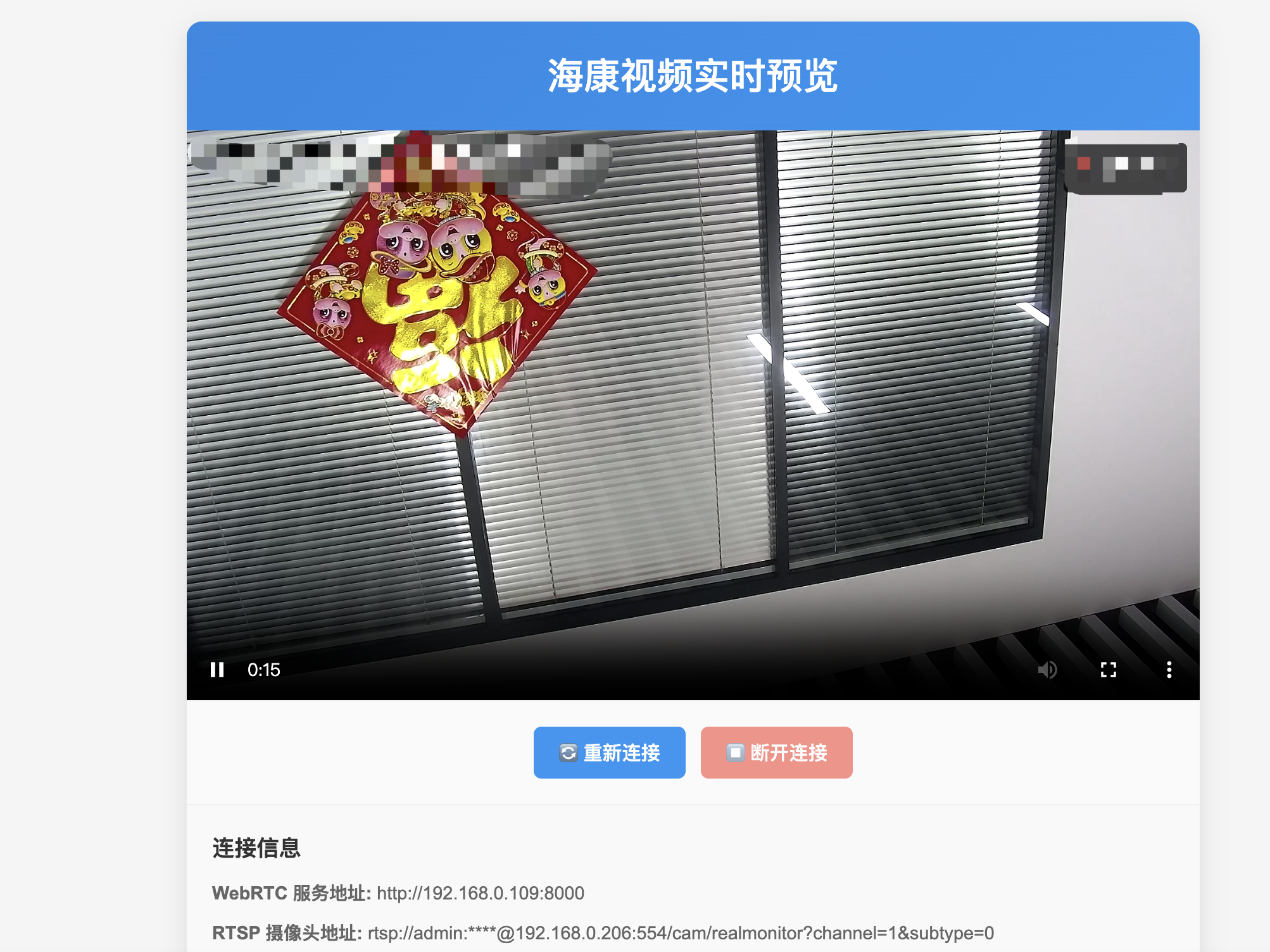
将上面的代码保存为 HTML 文件,并确保 webrtcstreamer.js 文件在同一目录下,然后在浏览器中打开,就能看到带有状态指示和控制按钮的视频播放页面了。页面会自动连接到配置的摄像头,并显示实时画面。
![image]()
六、进阶应用与优化
1. 多摄像头接入
在实际项目中,我们经常需要同时管理多个摄像头。WebRTC-Streamer 支持通过环境变量配置多个 RTSP 流:
1
2
3
4
| docker run -d -p 8000:8000 \
-e RTSP_URL_1="rtsp://admin:pass@192.168.1.64:554/Streaming/Channels/101" \
-e RTSP_URL_2="rtsp://admin:pass@192.168.1.65:554/Streaming/Channels/101" \
mpromonet/webrtc-streamer
|
在前端,我们可以添加一个摄像头选择器,让用户可以方便地切换不同的视频流。我在项目中还实现了画面分割功能,支持同时显示 4 路或 9 路摄像头画面,这样监控效率会大大提高。
2. 延迟优化建议
在实时监控场景中,延迟是一个关键指标。经过实际测试,我总结了几个有效的优化建议:
- 使用子码流:对于普通监控场景,使用子码流(将 URL 中的
101 改为 102)可以在保证基本画面质量的同时,显著降低带宽占用和延迟
- 优化网络环境:确保摄像头和 WebRTC-Streamer 服务器在同一个局域网内,减少网络跳转
- 调整服务器配置:如果服务器性能允许,可以适当调整 WebRTC-Streamer 的缓存参数
- 避免转码:尽量保持视频编码格式的兼容性,让 WebRTC-Streamer 只做转封装而不进行转码,这样能大大减少延迟
在我的项目中,通过这些优化,视频延迟可以稳定控制在 300ms 以内。
3. HTTPS 与远程访问
这里有个重要的安全限制需要注意:WebRTC 必须在安全上下文(HTTPS 或 localhost)中才能正常工作。如果需要远程访问,我们需要配置 HTTPS。
我的做法是使用 Nginx 作为反向代理,并配置 SSL 证书:
1
2
3
4
5
6
7
8
9
10
11
12
13
14
15
16
| server {
listen 443 ssl;
server_name example.com;
ssl_certificate /path/to/cert.pem;
ssl_certificate_key /path/to/key.pem;
location / {
proxy_pass http://localhost:8000;
proxy_http_version 1.1;
proxy_set_header Upgrade $http_upgrade;
proxy_set_header Connection 'upgrade';
proxy_set_header Host $host;
proxy_cache_bypass $http_upgrade;
}
}
|
这样配置后,用户就可以通过 HTTPS 安全地远程访问视频监控系统了。
七、总结
经过这次项目实践,我发现 WebRTC-Streamer 确实是连接安防摄像头和 Web 前端的理想桥梁。整个方案具有以下优势:
- 兼容性好:几乎支持所有主流浏览器,无需安装任何插件
- 延迟极低:通过合理优化,延迟可以控制在几百毫秒内
- 部署简单:使用 Docker 可以快速部署,大大降低了运维成本
- 扩展性强:支持多摄像头接入,可以根据实际需求灵活扩展
这种方案在很多场景下都能发挥作用,比如:
- 物联网设备的视频监控中心
- 智慧园区的可视化大屏展示
- 工厂或工地的远程巡检系统
- 零售店铺的实时客流分析
如果你也在做类似的项目,不妨试试这个方案,相信会给你带来不错的效果。
八、参考资料
在实现这个方案的过程中,我查阅了不少资料,这里分享给大家: